TLDR; Star Stable works fine under Wine 1.7.55. Use Play On Linux if you want to avoid too much Wine configuration details.
UPDATE 2015-12-27
I've recently reinstalled this on a fresh Ubuntu Gnome 15.10 64bit. In order to make Starstable work, I had to install two additional packages from the command prompt:
$ sudo apt-get install winbind
$ sudo apt-get install libldap-2.4-2:i386
If you follow the guide below and get weird error messages in the Play-on-Linux debug log, try the two commands above and give it another try.
Games on Ubuntu LinuxAnd now for something completely different. A few weeks ago I was helping my daughter (12 years old) with some problems on her Windows 8 laptop. Over the 18 months she had it, she had been installing all kinds of crap software. Clicking whatever links and buttons she thought would get her games working the fastest possible way, hardly realizing that she gradually filled her Windows installation with numerous of Trojans, viruses and other malware. We were at a point where I realized that getting her computer clean again would consume more time than to do a complete Windows reinstall, only to risk that we'd be back in the same situation a few months later. So instead we went for Ubuntu Linux.
Her first reaction after getting familiar with the new desktop environment (Gnome 3), she reported back that Minecraft had never run as smoothly on her laptop before. And the overall impression was that the entire laptop was a lot quicker than it was running Windows 8.
Everytime she asked for help installing something, I was a little scared that we'd find out that the particular game she was interested in would not run under Linux, but so far we've been lucky. Minecraft just works as is and Garrys Mod and Terraria was easy enough to set up in the Steam environment. But today, she really wanted to get Star stable working and that turned out to be a little bit more challenging even though the final solution was pretty straight forward.
Star stable under WineStar stables own web page claims that the game only runs under Windows and Mac. But I hoped that it could potentially work using Wine. Lately, I've found that the Play on Linux project is an excellent way to manage Wine. It's a nice graphical tool that allows you to manage several Wine environments in parallel.
Step 1: Install Play On Linux
Go to the Play On Linux home page and download the version for your Linux distribution. As we were running Ubuntu 15.10, we selected the appropriate Ubuntu deb package.
Step 2: Install WINE
During the installation of Play on Linux, it's quite possible that it will complain about not finding Wine on your computer. If so, install it using the Package manager on your computer (in our case, the Ubuntu Software Center)
Step 3: Add support for Wine 1.7.55
Once installed, we're going to open Play On Linux and add support for the latest version of Wine:
[caption id="attachment_590" align="aligncenter" width="300"]

Manage Wine versions (click to enlarge)[/caption]
And add the latest Wine version, at the time of writing this 1.7.55 by high lighting it and clicking the right arrow button:
[caption id="attachment_591" align="aligncenter" width="300"]

Select the latest stable version (not "staging")[/caption]
After clicking the right arrow button, a Wizard will start that guides you through the install process.
Step 4: Download Star Stable Installation program
Open a browser and got to the Star stable register page to initiate a download of the Star Stable executable. This step requires having or creating a Star Stable account. I'll leave out the details and just assume you have an account.
[caption id="attachment_592" align="aligncenter" width="253"]

Logging in to Star stable[/caption]
Once logged in, you'll get access to the download link. Since you're doing this from a Linux computer, the page will tell you that Star Stable is only available for Windows and Mac. So click the Windows link to continue. Most likely, you browser will ask you to open a link with an external program, but just ignore that:
[caption id="attachment_593" align="aligncenter" width="300"]

Ignore the request to lauch external application.[/caption]
..then, you should be taken to a page that offers manual download of the Installation program StarStableSetup_v921.exe.
[caption id="attachment_594" align="aligncenter" width="300"]

Manual download[/caption]
Step 5: Install Star Stable
Now. Go back to the Play On Linux main window and select install a program:
[caption id="attachment_595" align="aligncenter" width="300"]

Install a program[/caption]
On the next screen, click Install a non listed program:
[caption id="attachment_596" align="aligncenter" width="300"]

Install a non listed program[/caption]
On the next screen, select to create a new virtual drive:
[caption id="attachment_597" align="aligncenter" width="300"]

New virtual drive[/caption]
And name the drive:
[caption id="attachment_599" align="aligncenter" width="300"]

Name the virtual drive[/caption]
...on the next screen, check all the boxes, we want to make some changes:
[caption id="attachment_600" align="aligncenter" width="300"]

Configure installation type[/caption]
...after a few seconds, you get to select the Wine version, select the latest that we enabled in step 3:
[caption id="attachment_601" align="aligncenter" width="300"]

Select latest version[/caption]
..and on the next screen, select 64-bit version:
[caption id="attachment_602" align="aligncenter" width="300"]

Select 64-bit version[/caption]
..After a few moments, you'll get a dialog box where you can edit some Wine settings. We want to select to emulate Windows 7, finish by clicking OK
[caption id="attachment_603" align="aligncenter" width="257"]

Select Windows 7[/caption]
..after another few moments, you'll get a dialog box with options of packages to install before moving on. To be 100% honest, I'm not sure we need to add support for Direct X, but I did for my daughter so I'll do the same here. Add support for Direct X, look for a package named POL_install_dxfullsetup, mark it and hit next:
[caption id="attachment_604" align="aligncenter" width="300"]

Install Direct X support[/caption]
After downloading some files and installing Direct X, the wizard will finally ask you what file to use for installation:
[caption id="attachment_605" align="aligncenter" width="300"]

Select installation exe[/caption]
Find the file you downloaded in step 4, most likely in a folder named Downloads:
[caption id="attachment_606" align="aligncenter" width="300"]

Downloads folder[/caption]
and then click Next. After a few seconds, you should see the Windows installer for Star Stable open:
[caption id="attachment_607" align="aligncenter" width="300"]

Star Stable installer[/caption]
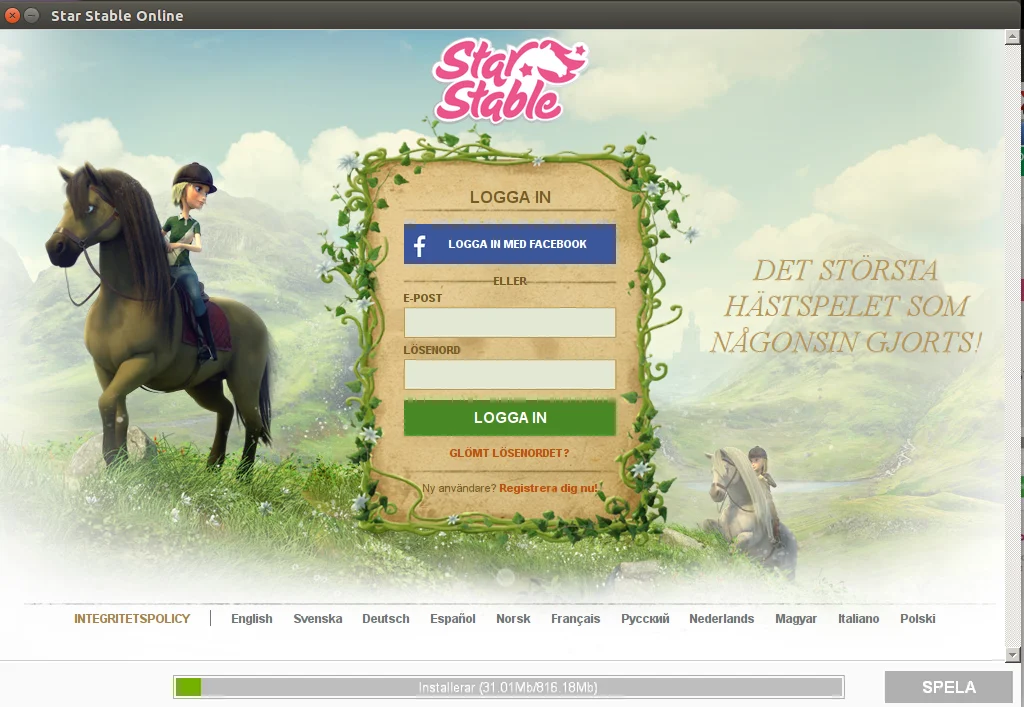
..after clicking Next, you will see the Star Stable installer window open. It's a login form and at the bottom of the screen, you'll see a progress bar showing a ~800 Mb download:
[caption id="attachment_608" align="aligncenter" width="300"]

Star Stable install screen (localized version)[/caption]
This part will take some time depending on your Internet connection speed. But rest assure, If you've gotten this far you'll most likely have a working installation. Once the progress bar reaches 100% the first time, there will be a couple of updates to download as well, so grab a coffee (or Wine) and relax a few moments before the game launches.
Step 6: Create a launcher
One final step. As the Star Stable game started, Play On Linux will be sitting forever to wait for the install process to finish. But it won't. Instead. Hit Cancel in the Play On Linux installation Wizard and return to the Play On Linux main window. As you can see, there will be no link to the Star Stable game, so we need to add one. Click the Configure icon in the top row:
[caption id="attachment_611" align="aligncenter" width="300"]

No link to Star Stable[/caption]
On the dialog that opens, mark the Starstable virtual drive and click the "Make new shortcut..." button:
[caption id="attachment_612" align="aligncenter" width="300"]

Create a shortcut[/caption]
Then find the executable (pink icon) named StarStableOnlineLauncher.exe and click Next and on the next screen, just accept the default name given for the launcher.
[caption id="attachment_613" align="aligncenter" width="300"]

Create laucher step 2[/caption]
...then click Cancel to exit the Wizard and then close the configuration dialog to return to the Play On Linux main screen. You should now have a shortcut for the game. To start the game from now on. Just start the Play On Linux program, select the StarStable launcher and click the Play button on the top row:
[caption id="attachment_614" align="aligncenter" width="300"]

Start Star Stable[/caption]
And that's it folks! Go enjoy Star Stable on you Linux machine. Comments? Questions? Other feedback? Don't hesitate to leave a comment below.


11 Comments